
By ToolBrivio Editorial · Documentation-based analysis; no hands-on results are claimed. These are ordinary source links, with no affiliate commission. Research approach · Disclosure.
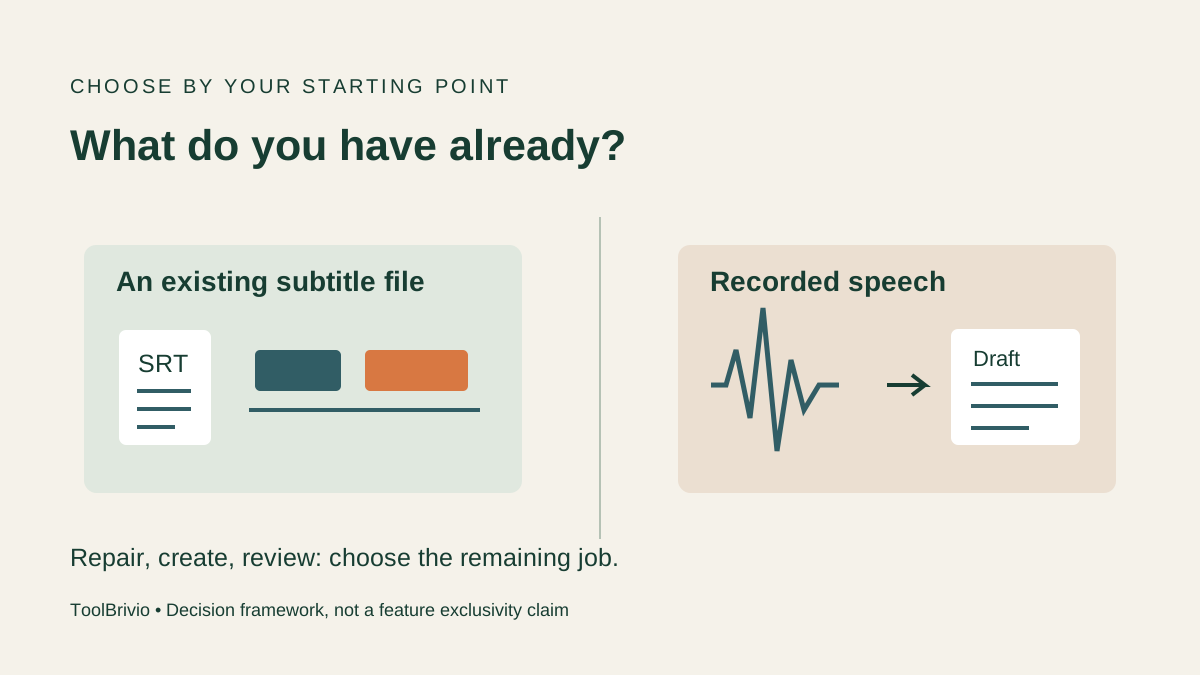
An SRT file arrives from a client. Its words are mostly right, but the captions appear late. On another job, you have a recording and no text at all. These are different starting points, and they change which subtitle tool is worth using.
Our recommendation: shortlist Subtitle Edit when you want to work directly on subtitle files on a desktop. Consider Happy Scribe's managed service when you need a draft from recorded speech and a shared review workflow. Neither choice removes the need to check the words, timing and final export.
This is a documentation-based comparison, checked October 8, 2026. We have not run matching recordings through the two products, so we cannot rank transcription accuracy or speed. The scenarios and budgeting examples below are our own decision framework.
First separate the three Happy Scribe options
Happy Scribe offers a free online subtitle editor, a managed AI transcription/subtitling service, and separately charged human services. Comparing the free desktop editor only with a paid transcription subscription would miss an important option.
The free online editor advertises SRT editing, a visual timeline, timecode controls and SRT, VTT and STL export. That makes it worth investigating for an occasional file-editing job. We did not test its current browser behavior, account requirements or handling of large files. Do not assume it has the same allowances or collaboration features as a paid workspace.
| Your starting point | First option to investigate | Reason and check |
|---|---|---|
| An existing SRT needing repair | Subtitle Edit | Local subtitle editing and synchronization; check the release and operating system. |
| A one-off file and preference for a browser | Happy Scribe free editor | Advertised timing and export tools; confirm the actual browser workflow before relying on it. |
| A recording needing a first draft | Happy Scribe managed service, or a configured local speech engine | Balance setup, permitted uploads, usage costs and review time. |
| Several people approving the same draft | Happy Scribe workspace | Check seats, access and sharing terms for the selected plan. |
| A recording that must remain on your computer | Subtitle Edit with local features | Keep optional cloud engines disconnected; review your own storage and backup permissions. |
If the file already exists, avoid paying to recreate it
Subtitle Edit's overview documents subtitle editing, conversion and visual synchronization. For a freelancer receiving an existing caption track, these are useful reasons to choose the application: the remaining job is a repair, not necessarily another transcription.
Before choosing any tool, identify the actual defect. If the text is correct and the recording is unchanged, repair its timing. If the client supplied a different video cut, ask for the matching version. Paying for a new draft may be justified when the words are unreliable or the edit has changed substantially; it is not an automatic requirement for every late caption.
Our Subtitle Edit review explains its cost and setup tradeoffs. For the repair itself, use the timing diagnosis guide.
If there is only speech, account for the whole first-draft workflow
The managed Happy Scribe subtitle workflow covers generating a draft, editing wording and timing, sharing work and exporting subtitle files. The reason to consider that route is the integrated workflow, rather than an assumption that generated text is ready to publish.
Subtitle Edit also documents speech recognition with local and online engine choices. Local engines require downloads and suitable computer resources; supported engines vary by platform. This means “free desktop editor” and “instant first draft with no setup” are different propositions.
For a deadline, decide how much setup you can reasonably absorb. For recurring work, learning a local workflow may be worthwhile. In either case, verify names, numbers, negatives and speaker changes against the recording. We have no measured evidence that one tool needs less correction than the other.
Compare a usable delivery cost, not a headline monthly price
The Subtitle Edit FAQ identifies the application as free and MIT licensed. Its core editor costs US$0 with no monthly or annual subscription. Your labor, storage and any connected provider's charges remain separate.
Happy Scribe's pricing page separates a limited AI trial, paid plans, additional credits and export allowances. It displays both monthly and annual options. Confirm the billing interval and total commitment at checkout; a monthly equivalent for an annual plan is not a cancellable month-to-month price. This comparison does not quote a subscription price because the correct plan depends on the required export and workload.
For example, imagine six 20-minute videos in a month: 120 source minutes. That is a planning example, not a measured production run. Write down the required subtitle format, any translation task, the number of reviewers and the quoted allowance. Ask whether repeat processing or translation consumes extra credits. Add any top-ups and separately ordered human service before comparing costs.
Happy Scribe's human-service pricing is separate from subscription credits and varies with language, length, currency and urgency. Ordering human work is a different budget decision from buying more AI minutes.
Use our subtitle tool choice worksheet (TXT) to record the quote, allowed upload route, review time and acceptance requirements. This is especially helpful when a cheap plan cannot export the format the recipient actually needs.
Local processing and shared review solve different problems
The Subtitle Edit README says core editing, conversion, playback and local backup run on the device. Optional online services send the data needed for a request to the selected provider. Local core features therefore provide a useful route when uploading a recording is not authorized; an online translation or transcription choice changes that route.
A shared cloud workspace may reduce the hassle of sending successive files around, but first decide who can view or edit the content and whether uploading it is permitted. Conversely, a local file needs a clear owner and version naming. If two people edit separate copies, agree how changes will be combined before both declare their file final.
A hybrid handoff can make sense
You do not have to use one product for every stage. A permitted workflow could generate and correct a draft in Happy Scribe, export a supported subtitle format, then make final timing or conversion changes locally. Check the selected plan's export rights first, and preserve the reviewed original.
Once the local copy becomes the delivery version, treat it as a distinct revision. Do not assume later cloud edits update that file. Record the matching video, language, subtitle filename, tool version and unresolved questions. Play the exported track in its destination player; successful export alone does not establish readable captions.
What would change our recommendation?
For an existing file, successful import, reliable matching-video playback and the recipient's accepted export format matter most. For first-draft work, test a short permitted sample containing the difficult speech you actually face. For a team, include the reviewer in a trial of the sharing and approval workflow.
Choose around that evidence. Subtitle Edit is a strong candidate for direct local control over subtitle files; Happy Scribe's managed service is worth considering for draft creation and shared review. Its free online editor also deserves a look for occasional browser editing. None of these options justifies skipping the final caption check.